
Are you seeing a 0 Byte Download for Emberville, or did you click Install only to find that nothing downloaded for Emberville? Linux players encountering this problem may need to select a Steam Play compatibility tool manually before Steam will download the game files.
Proton Experimental and GE-Proton10-34 are currently known to work with the game.
This workaround applies to Linux desktops and Steam Deck, although the Steam interface may look slightly different between devices.
How to fix the 0 Byte Download for Emberville#
- Open your Steam Library.
- Right-click Emberville and select Properties. On Steam Deck, highlight the game, press the Menu button, and open Properties.
- Select Compatibility.
- Enable Force the use of a specific Steam Play compatibility tool.
- Open the drop-down menu and select Proton Experimental or GE-Proton10-34.
- Close the Properties window, return to the game page, and start the installation again.
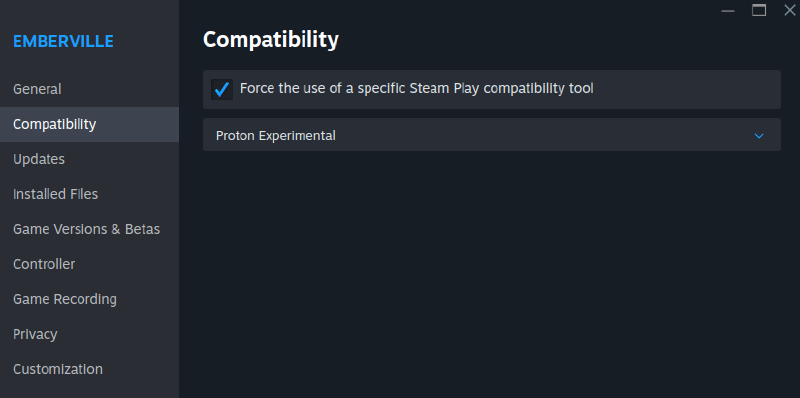
Start with Proton Experimental, since it is available directly through Steam. Steam should begin downloading the game files after the compatibility tool is selected. If the download still shows 0 bytes, fully close Steam, reopen it, and try GE-Proton10-34 instead.
GE-Proton is a community-maintained compatibility tool and is not included with Steam by default. If GE-Proton10-34 does not appear in the drop-down menu, it must be installed separately before Steam can use it.
If nothing downloads for Emberville after changing Proton#
If changing Proton versions does not start the download, try these basic steps:
- Fully exit and reopen Steam after changing or installing a compatibility tool.
- In Properties → Installed Files, select Verify integrity of game files.
- Install current system and graphics-driver updates.
- Restart the device, then test both known working Proton options again.
- Confirm that the selected Steam Library location has enough available storage.
Changing compatibility tools can cause Steam to prepare the game again, so the initial download or first launch may take a little longer than usual.
Additional resources#
- Emberville Discord Linux troubleshooting thread
- Steam Deck Software and Troubleshooting Guide
- GE-Proton releases on GitHub
Compatibility can vary by Linux distribution, graphics hardware, and driver version. These versions are known working options, but they may not resolve every system-specific issue.